I had to set up my new work computer today and rather than just slog away at it, I thought I would live tweet the process. Honestly, there’s still a lot of config left to do, but the tweet thread does a good job organizing the apps and software I use daily. My install notes are another good summary.
Upgrade to Big Sur
I’ve got a new work laptop! I’m going to try to track my setup process and the software and tools I install in this thread
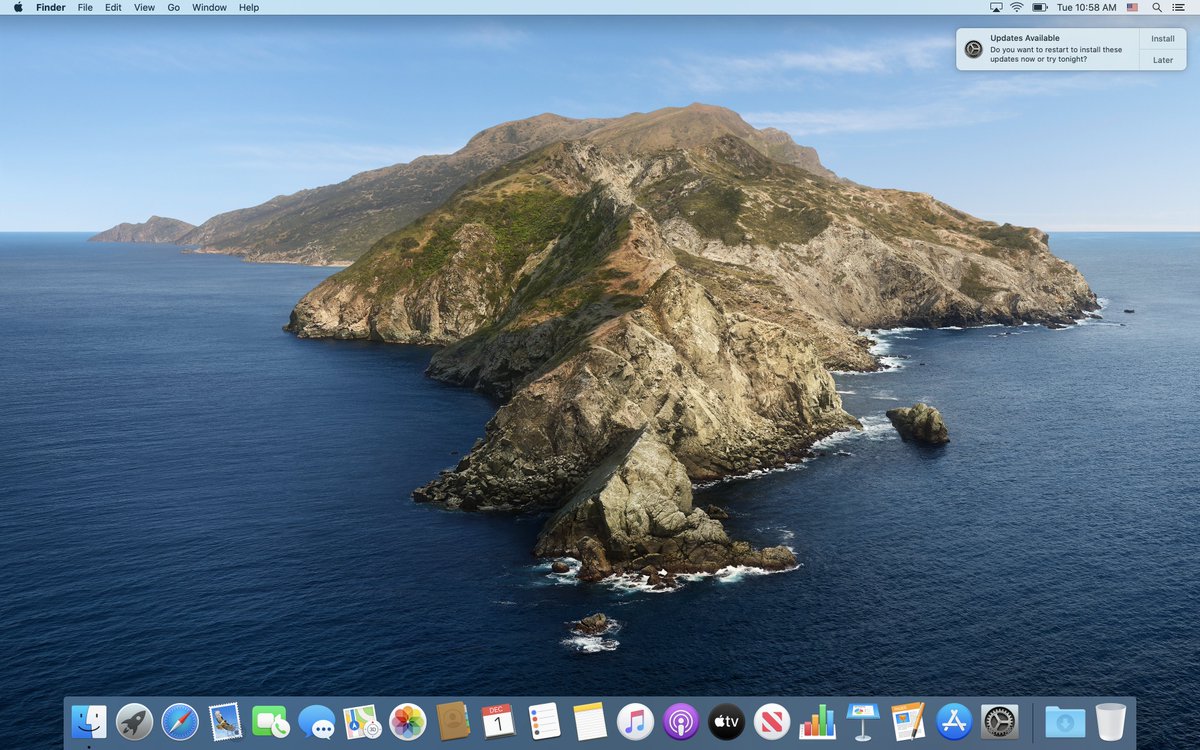
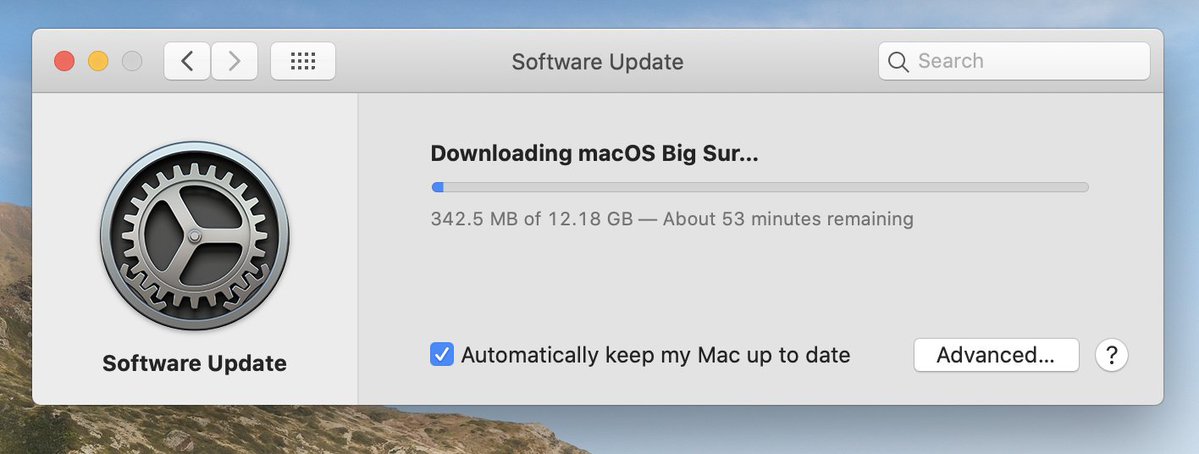
Step #1, wait…
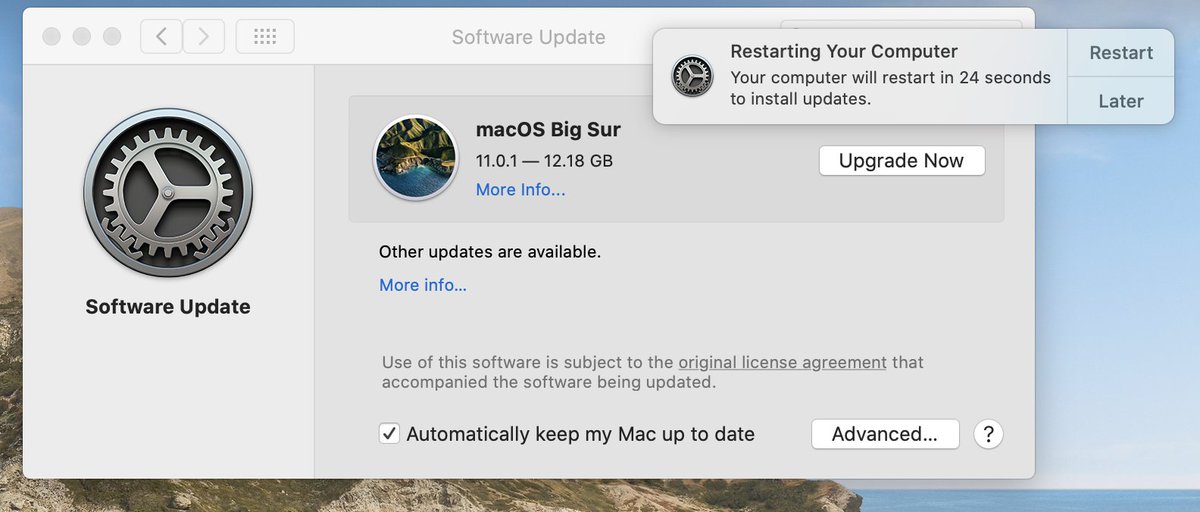
Oh wow, I really jumped the gun on this thread
in the mean time, I guess I’ll tidy the dock

Here’s something I do on every machine I use: turn Caps Lock into Escape. It’s only annoying when I write SQL but it saves so much finger and hand movement. Essential for vim mode.
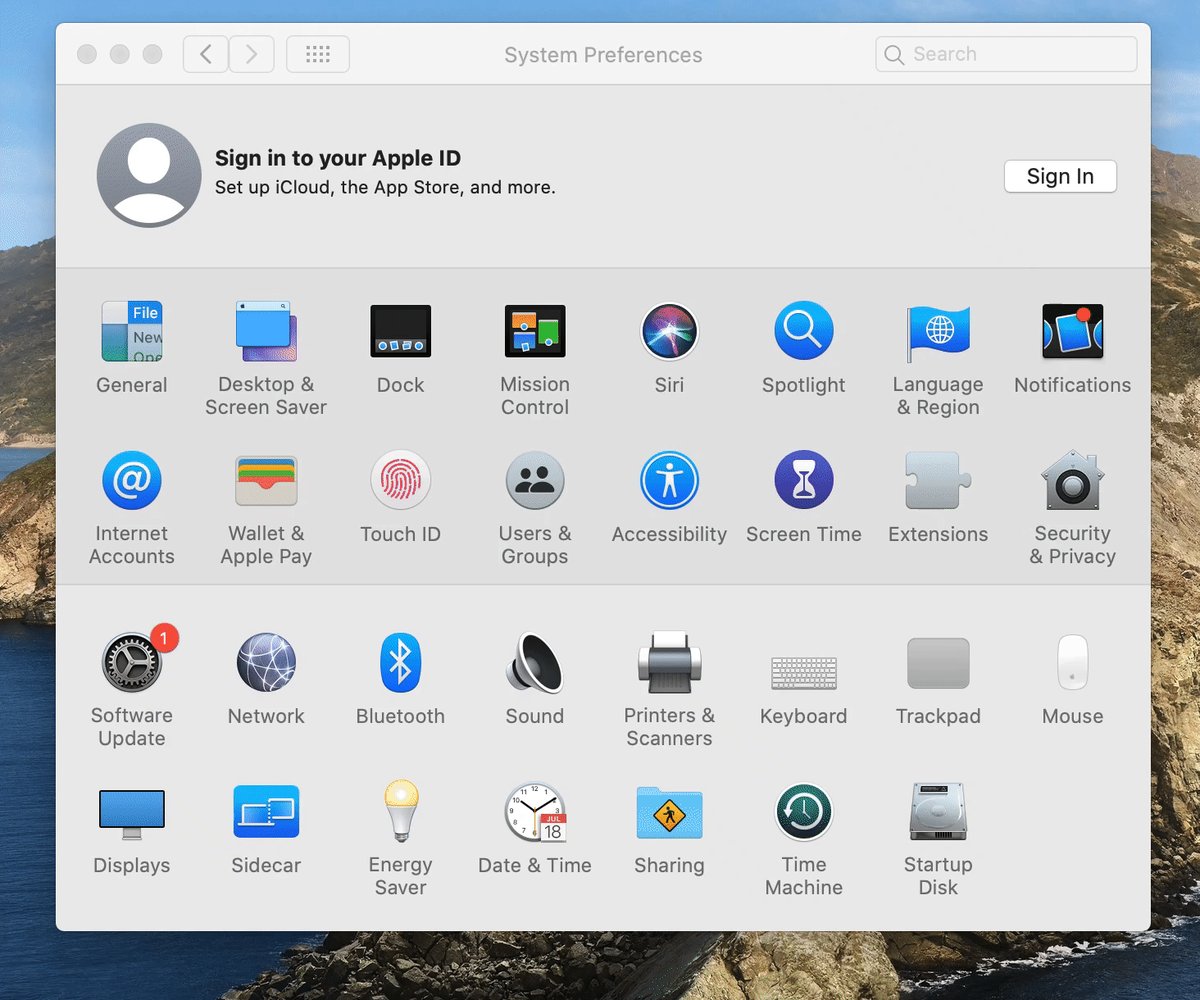
Looking for other things I can tweak while I wait. Hot corners?
↗️ Mission Control
↘️ Desktop
↙️ Application Windows
↖️ Put Display to Sleep (and add require password immediately)
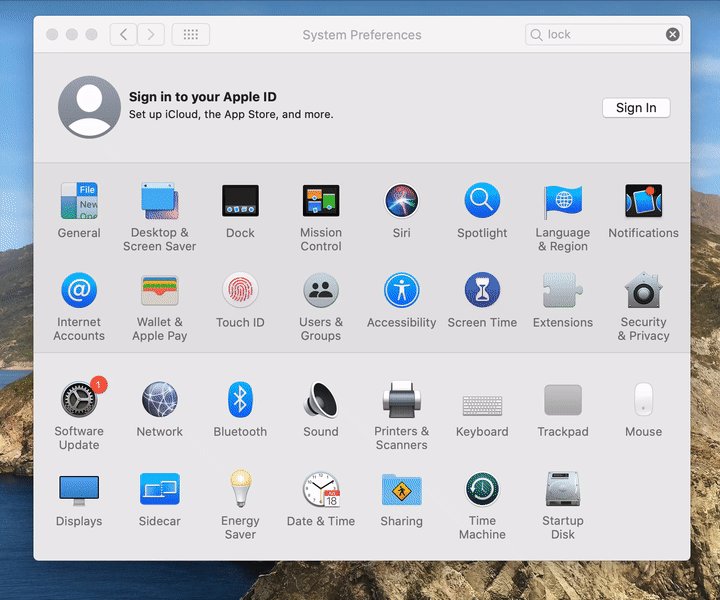
Okay, Big Sur Install Time has arrived. After these messages, we’ll be right back.
🍎 1 minute remaining…
🍎 About 17 minutes remaining…
🍎 About 26 minutes remaining…
🍎 About 9 minutes remaining…
*reboots*
🍎 (no time estimate)
After a reboot, all is quiet. The screen is black. I move the mouse. A login screen! That was fast!
I login. I’ve entered a time loop. Tuesday starts again.
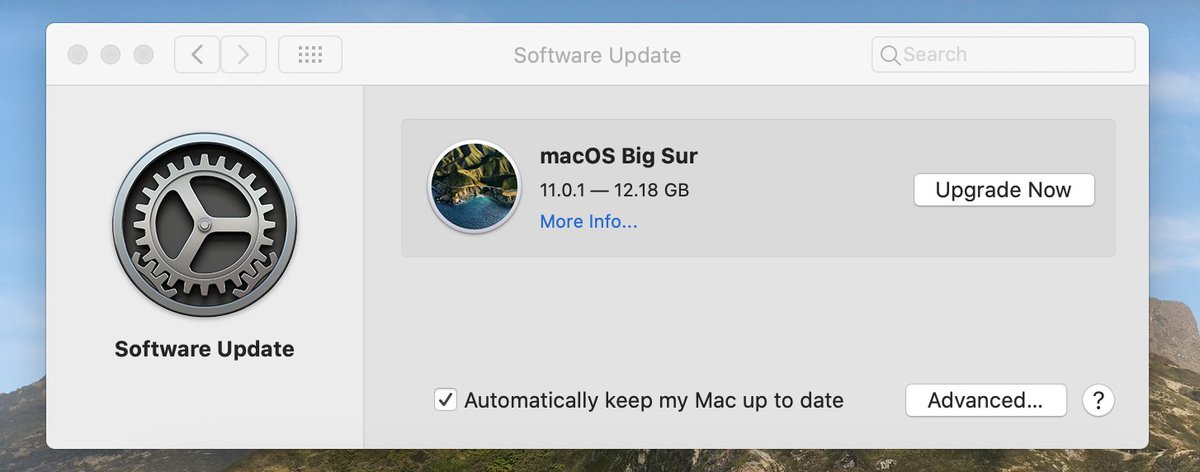
I guess we’re downloading Big Sur again. I feel like I did this before…
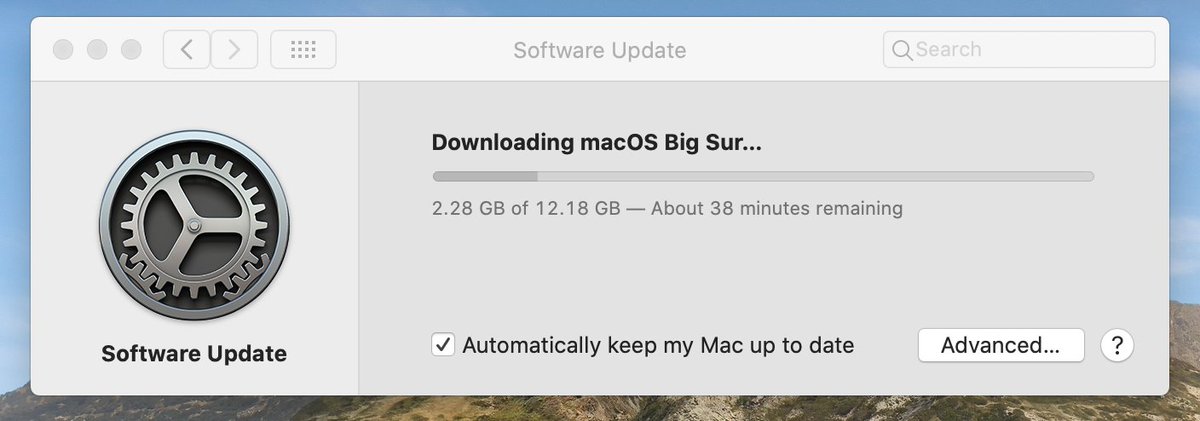
Download complete … now this looks legit. Wish me luck!
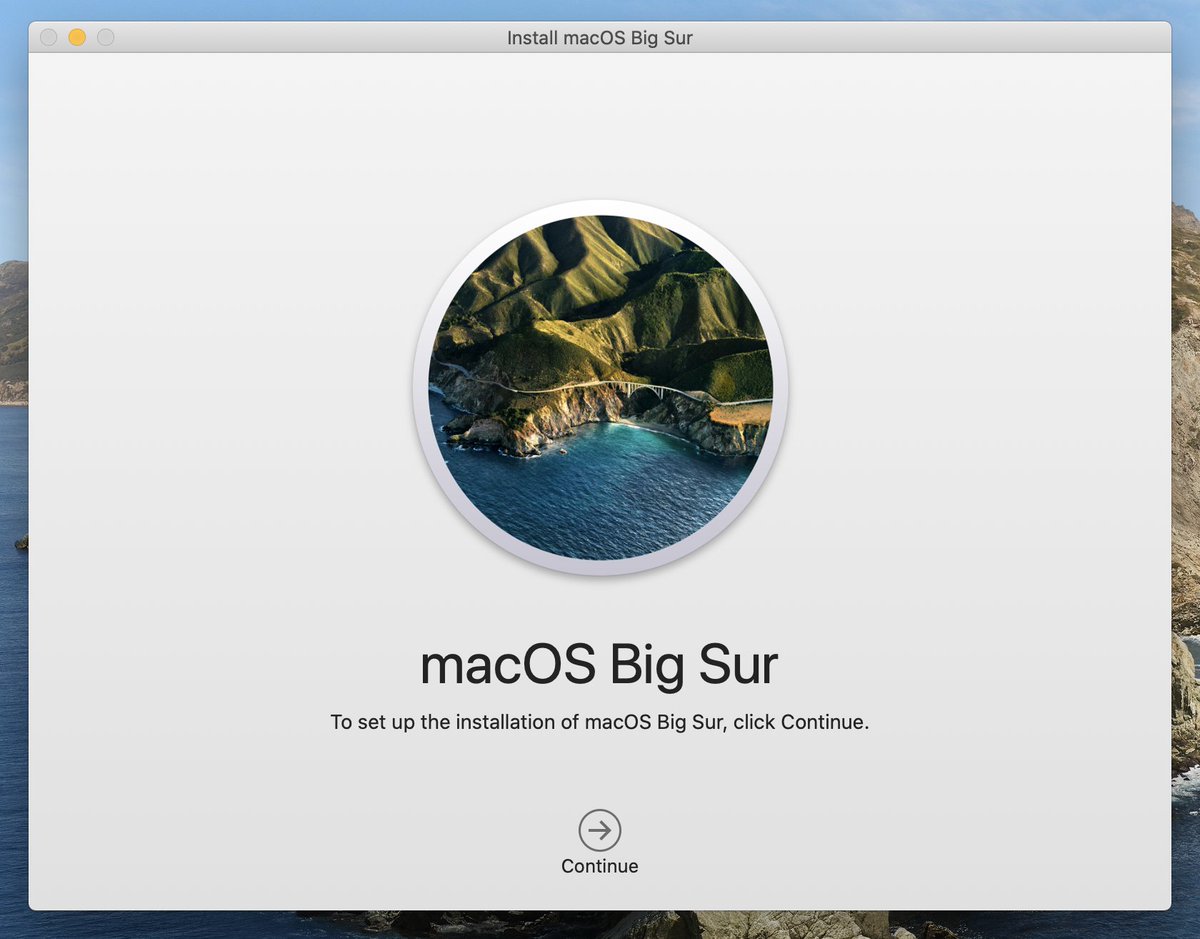
Critical First Steps
And we’re back! I am… not sure how I feel about the new look of Big Sur
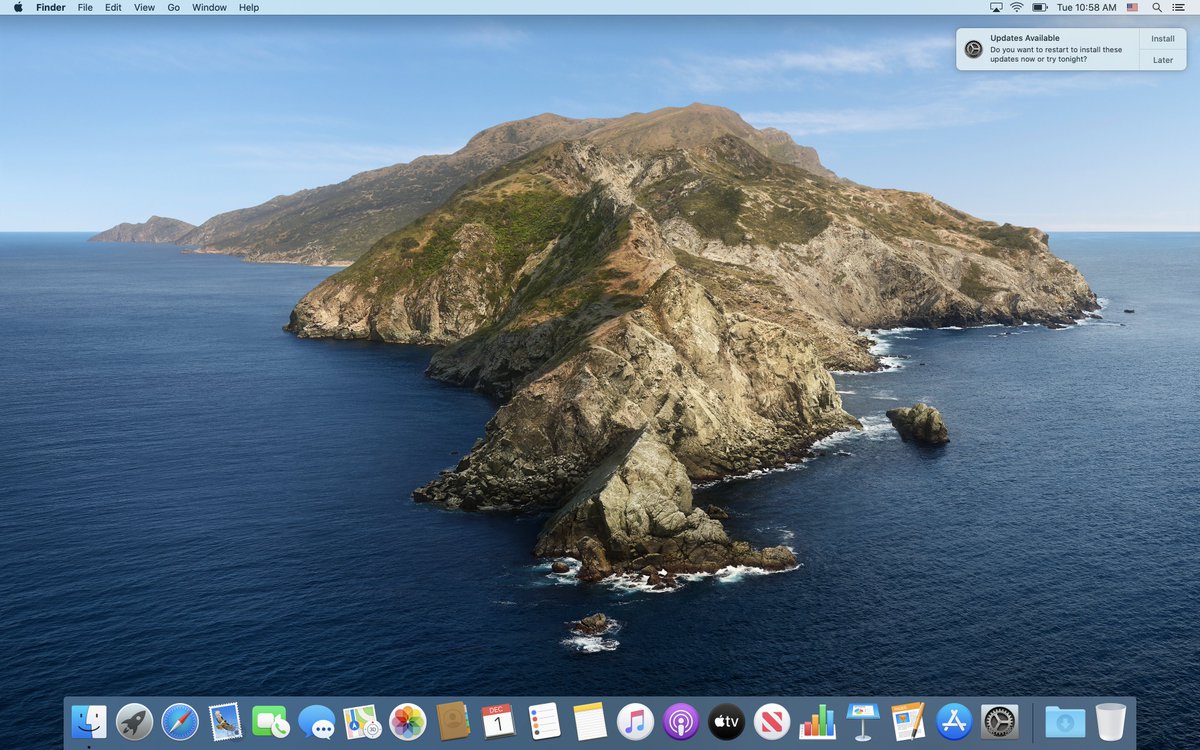
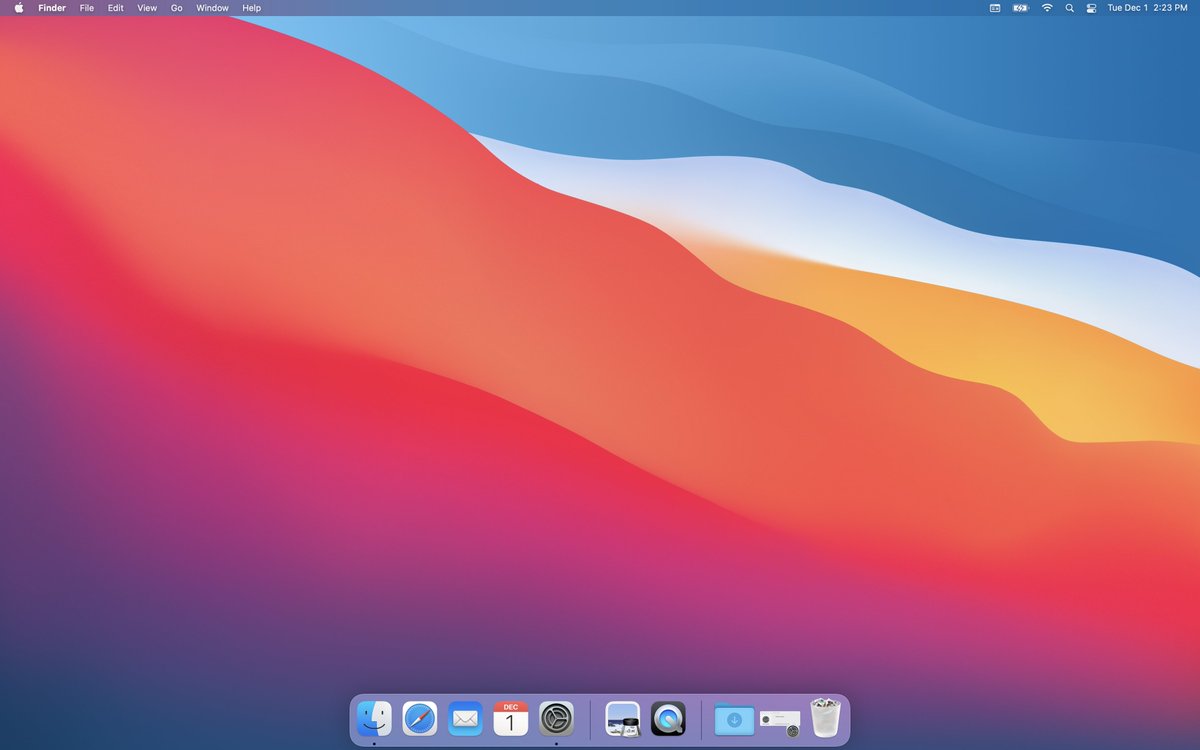
Just in case you or I get lost, I took some notes while I was waiting for Big Sur to install. Here’s my general install plan
https://gist.github.com/gadenbuie/a14cab3d075901d8b25cbaf9e1f1fa7d
First things first I need a good terminal and iTerm2 is my favorite
https://iterm2.com/
Now that I have iTerm2, I need Apple’s Command Line Tools. Open up iTerm2 and run
xcode-select --installHopefully this won’t take long…
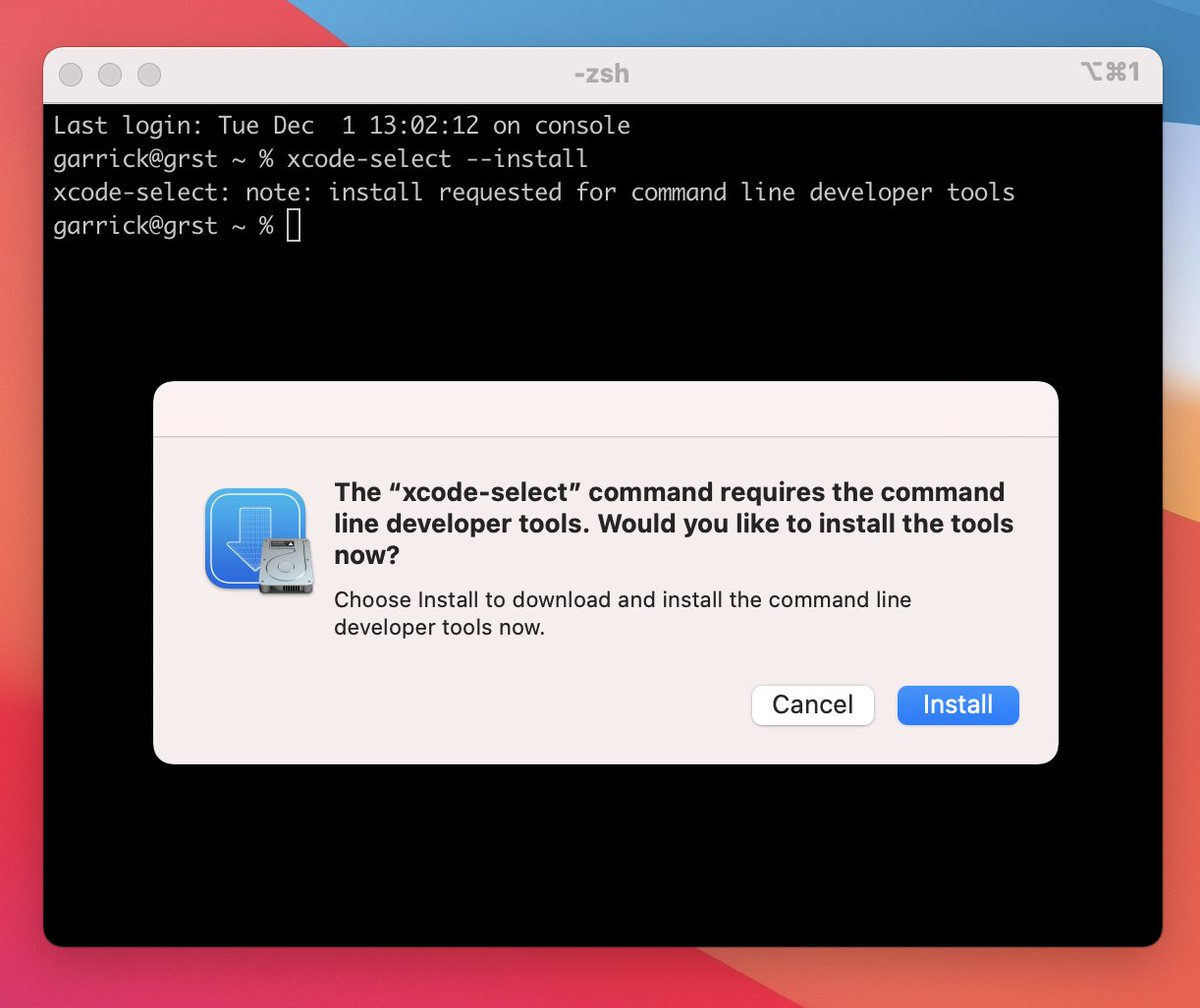
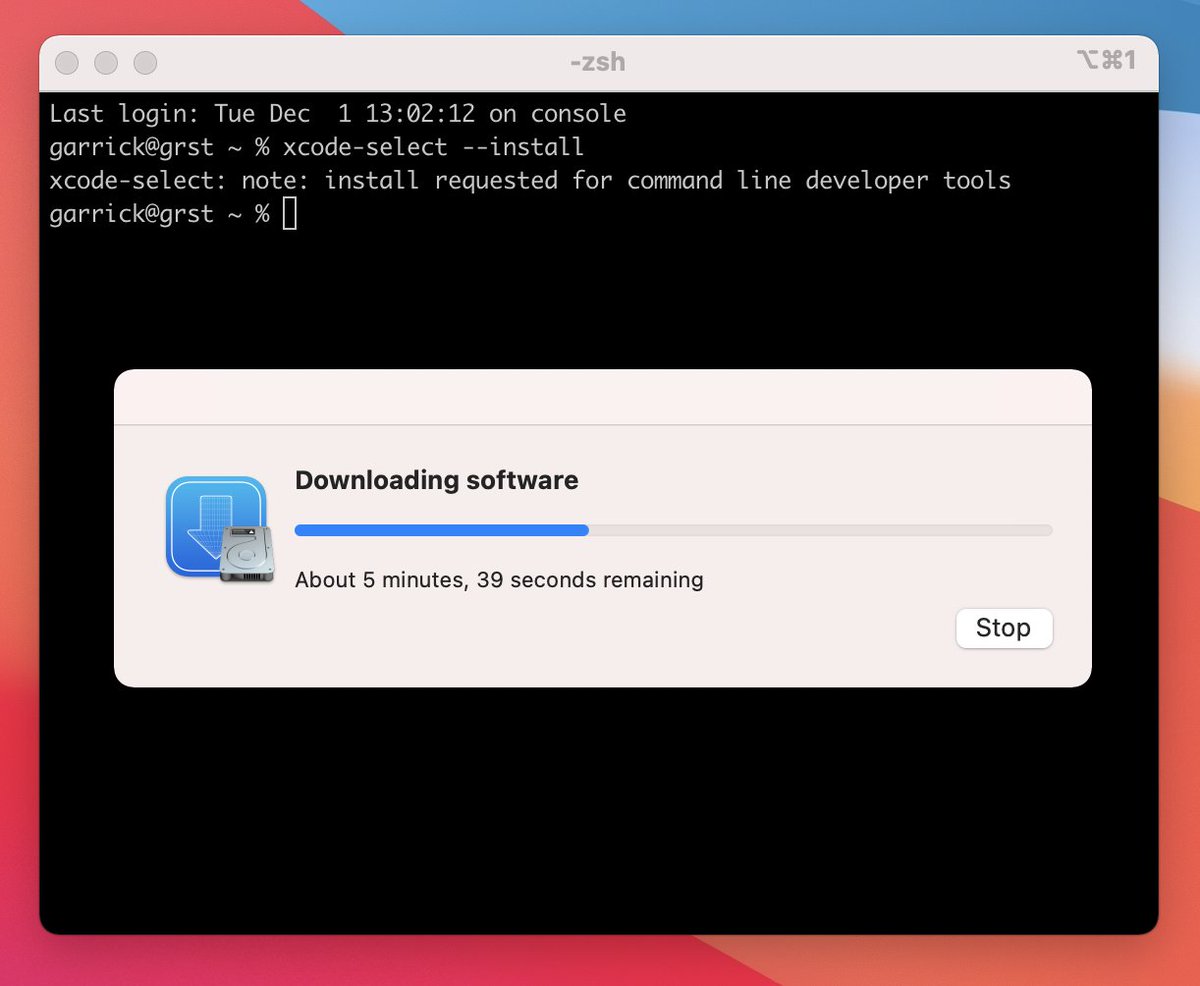
That was pleasantly fast. Next up: homebrew.
Homebrew makes it easy to install software, even apps. I’m just going to copy the install code from https://brew.sh/ and run it
Homebrew’s ready, so let’s put it to use. I use @alfredapp to switch between apps, files, etc. so I’ll use brew to install it:
brew cask install Alfredbrew install <x> usually installs command line utility <x>. Apps with interfaces need “cask”.
https://www.alfredapp.com/
If you use Alfred, @hadleywickham has an awesome tip to let Alfred find @rstudio .Rproj project files.
I've documented my workflow for opening @RStudio projects (using on @alfredapp) in this short video: https://t.co/XvmRyGSsol #rstats
— Hadley Wickham (@hadleywickham) February 27, 2018
And if you purchase Alfred’s powerpack features, @pjs_228 has a collection of helpful R workflows
Are you an @alfredapp and #rstats user?
I’ve created an alfred workflow for R which might be helpful.https://t.co/GrsIbCqaBT
Feedback welcome.— Patrick Schratz (@patscli) November 19, 2020
After jumping through a few permission hoops to give Alfred access to everything, we’re in business.
I remap Alt + Space to Spotlight (Mac’s quick finder) and make Alfred Cmd + space.
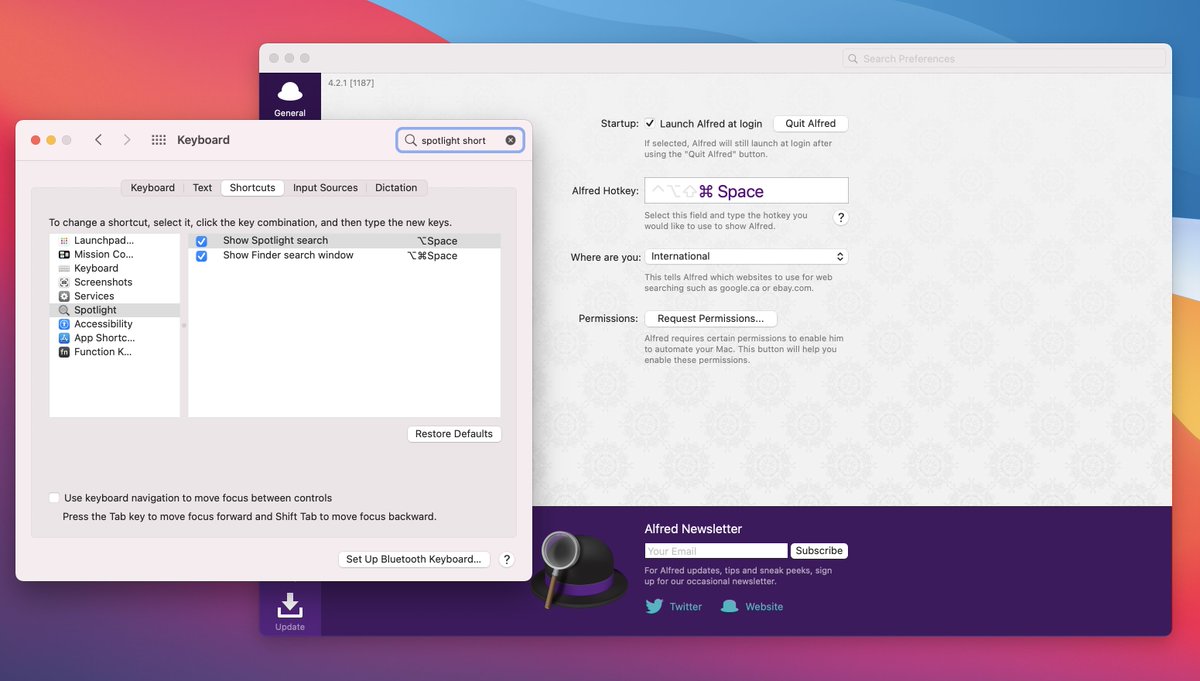
Next up, my browser. I use and love Firefox on all devices and my daily driver is the Firefox Developer Edition
https://www.mozilla.org/en-US/firefox/developer/
I’ve been informed by homebrew that
brew cask install <app>has been deprecated in favor of
brew install --cask <app>After a short digression, I got Firefox to install with brew
brew tap homebrew/cask-version

brew install --cask firefox-developer-edition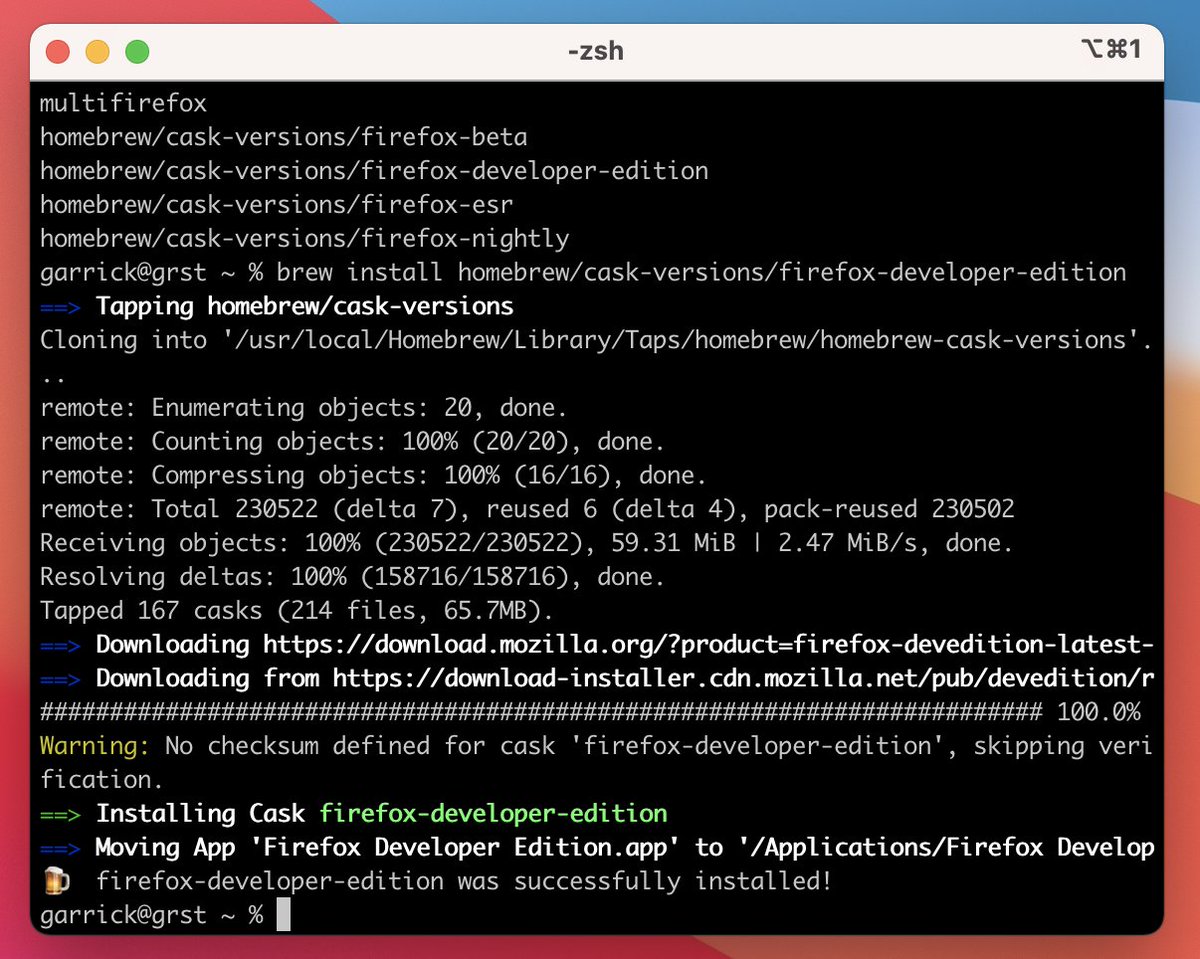
My favorite part of installing @firefox: login to Firefox Sync and all of my bookmarks, extensions, preferences, etc. all magically appear in my new browser
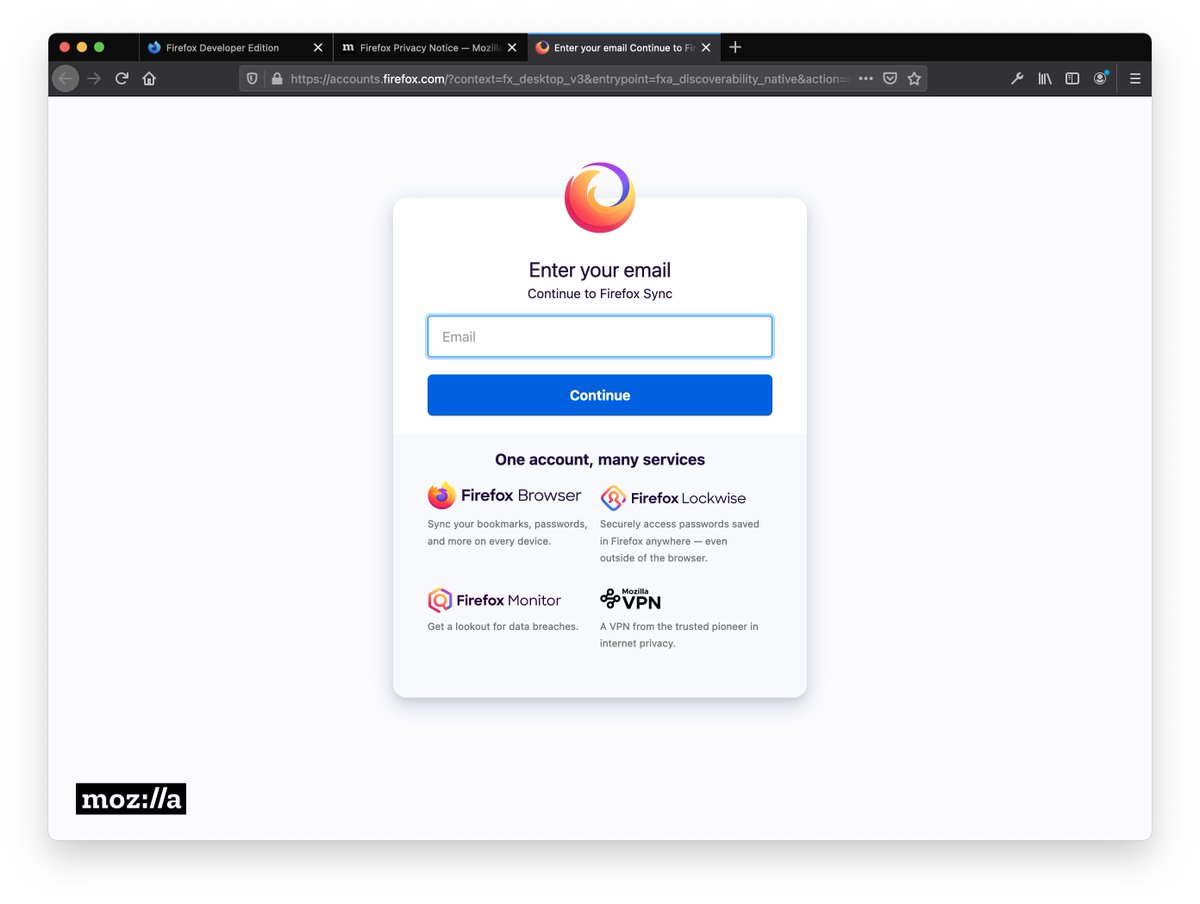
Another short digression, I use these extensions every day:
- LastPass https://lastpass.com
- Refined Github https://github.com/sindresorhus/refined-github
- Dark Reader https://darkreader.org/
- Copy as Markdown https://addons.mozilla.org/en-US/firefox/addon/copy-as-markdown/
Install R and Friends
Okay, with the critical bits done, it’s time to install #rstats!
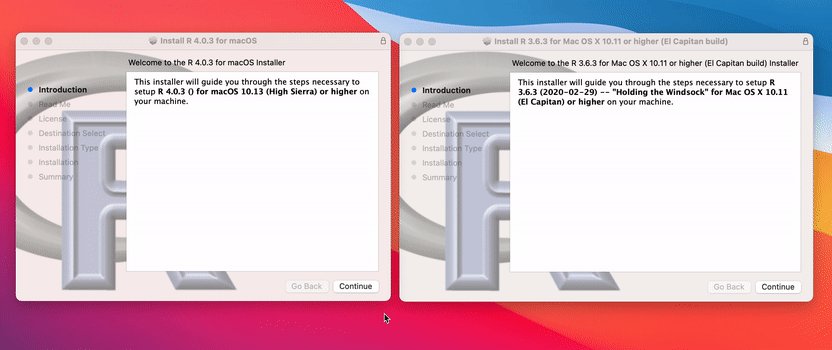
I’m going to install both 3.6.3 and 4.0.3 (and maybe eventually devel). Yes, you have multiple versions of R on your machine at once (more on that in a second)
https://cran.r-project.org/src/base/R-4
https://cran.r-project.org/src/base/R-3
Yikes! Those are not the links I want. How many other people click the wrong links on the front page of https://www.r-project.org ?
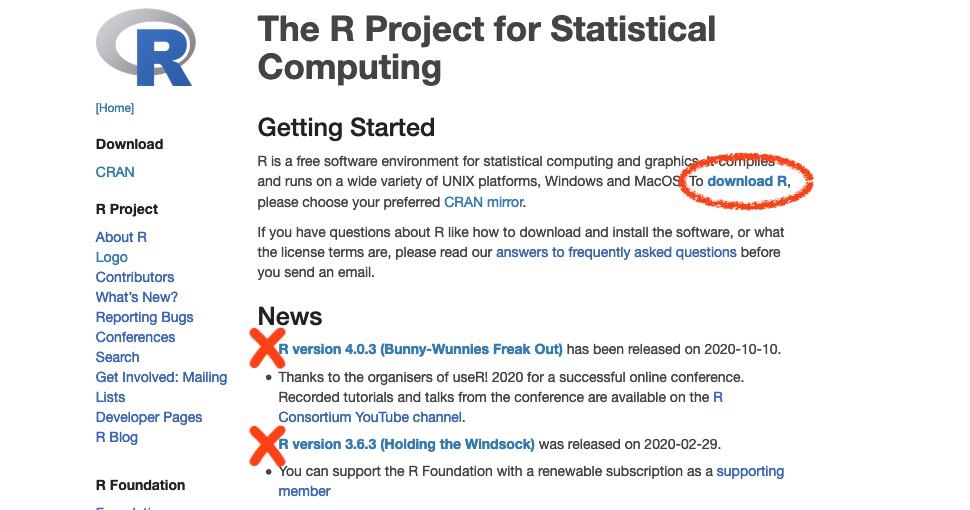
It takes a surprising number of clicks to get to where I can download the macOS R binaries. I mostly just click things but I’m sure this process is very confusing for many people. The page is loaded in an iframe, which makes deep-linking hard: https://cloud.r-project.org/bin/macosx/
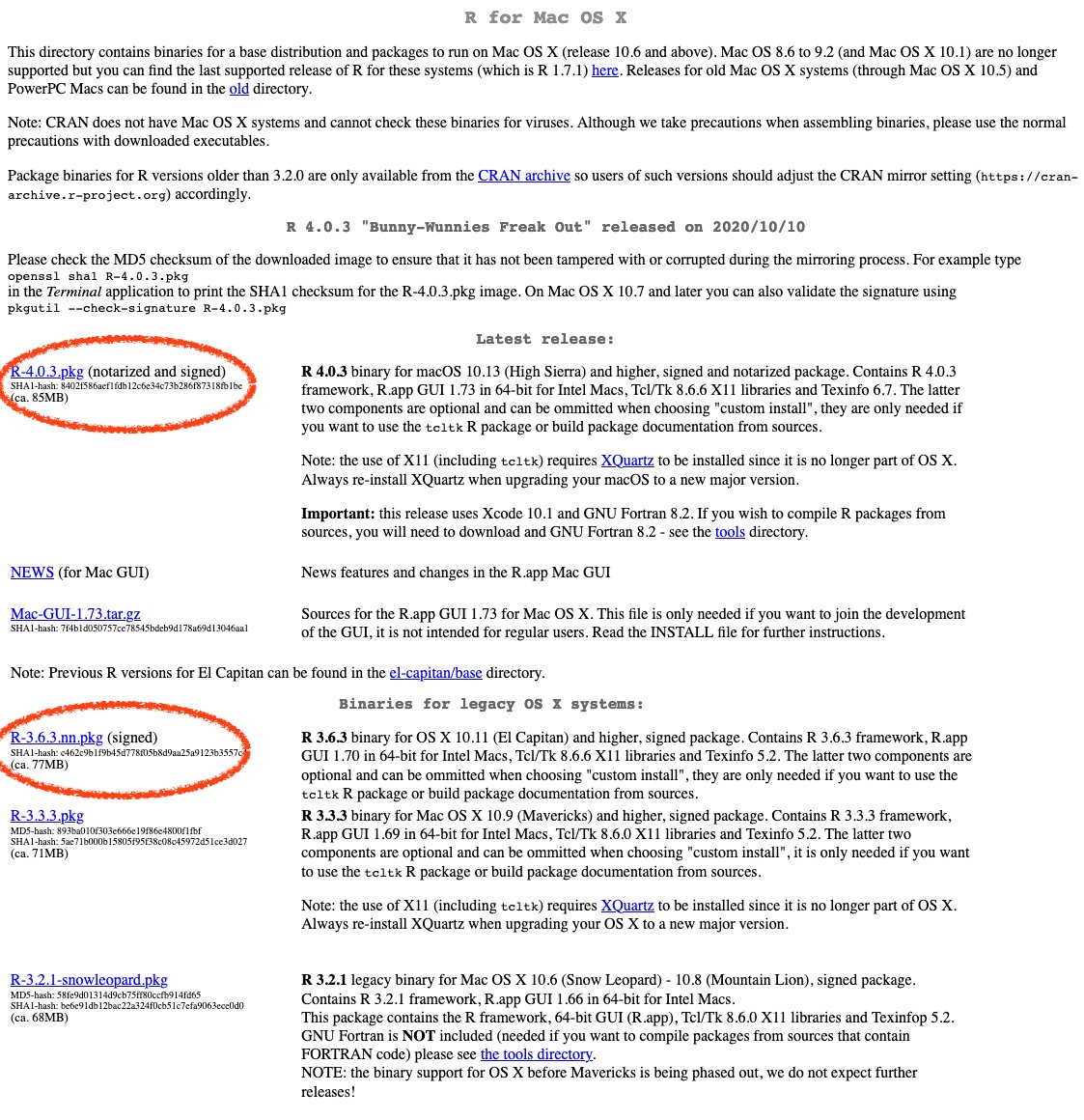
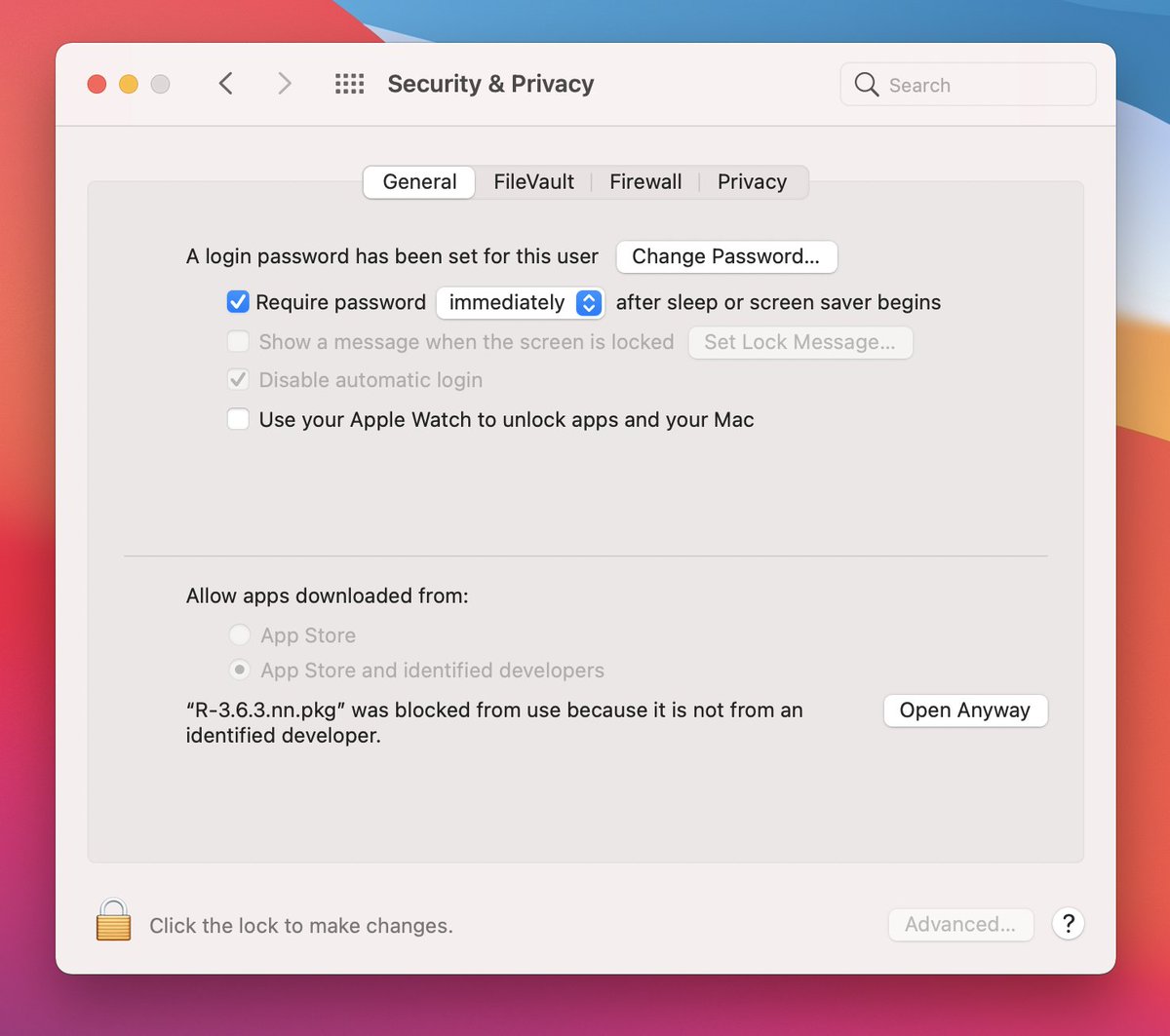
I picked the signed 3.6.3 binary but I still had to go through macOS security steps. When it doesn’t open, open System Preferences > Security and Privacy > General and then, while second-guessing yourself, click “Open Anyway”
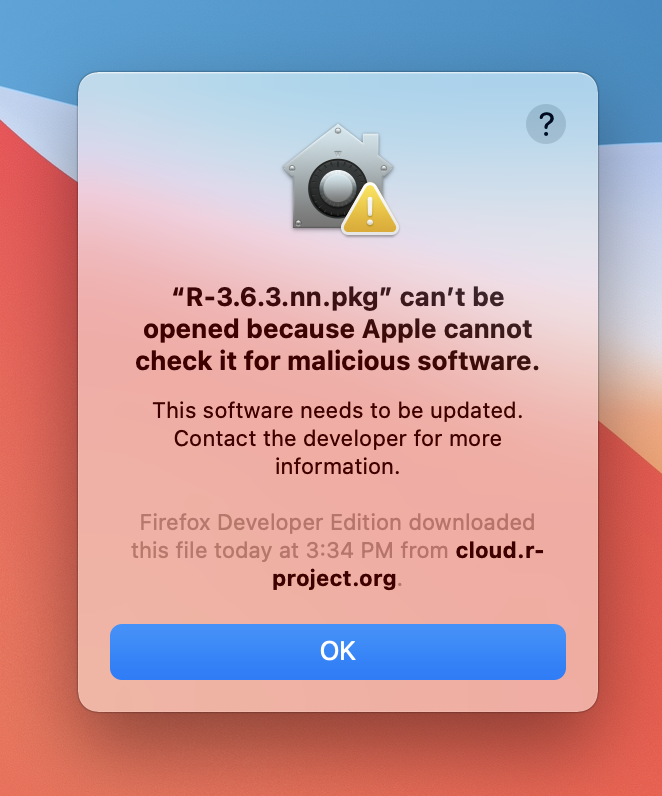
Which R installs faster? It’s a race (to see if I can remember my new password)
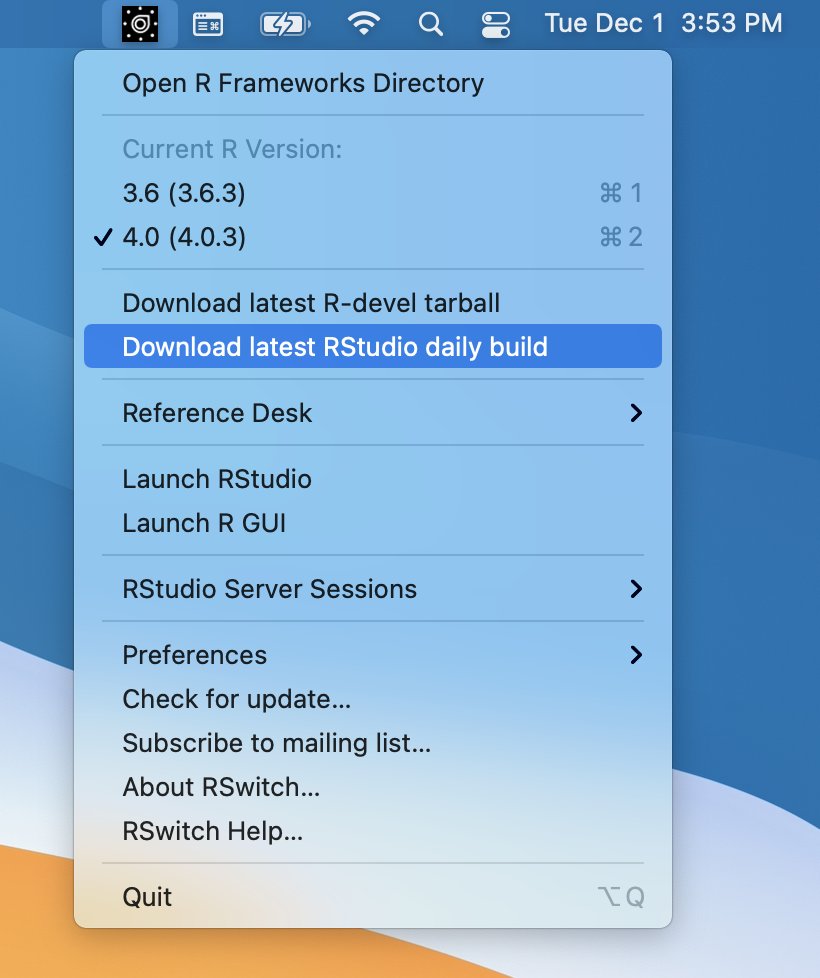
Now that I have more than one version of R installed, Bob Rudis’ RSwitch utility is essential. Easily switch between versions of R from the menu bar!
https://rud.is/rswitch/
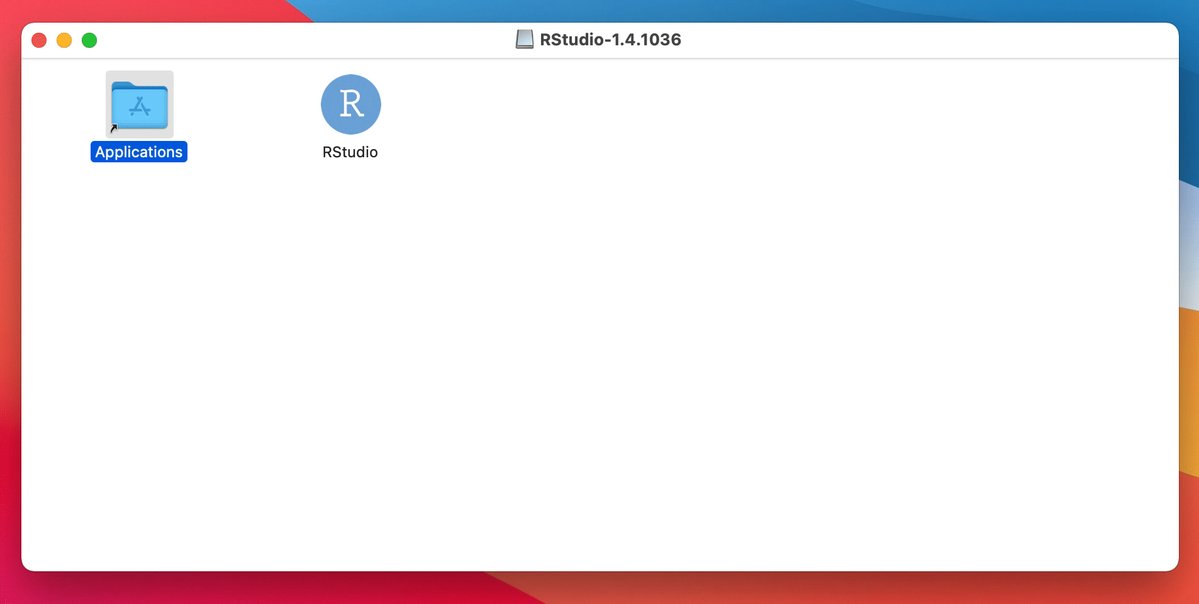
It also makes it easy to grab the latest preview version of @rstudio which you can also find online https://dailies.rstudio.com/
My little laptop is growing up so fast
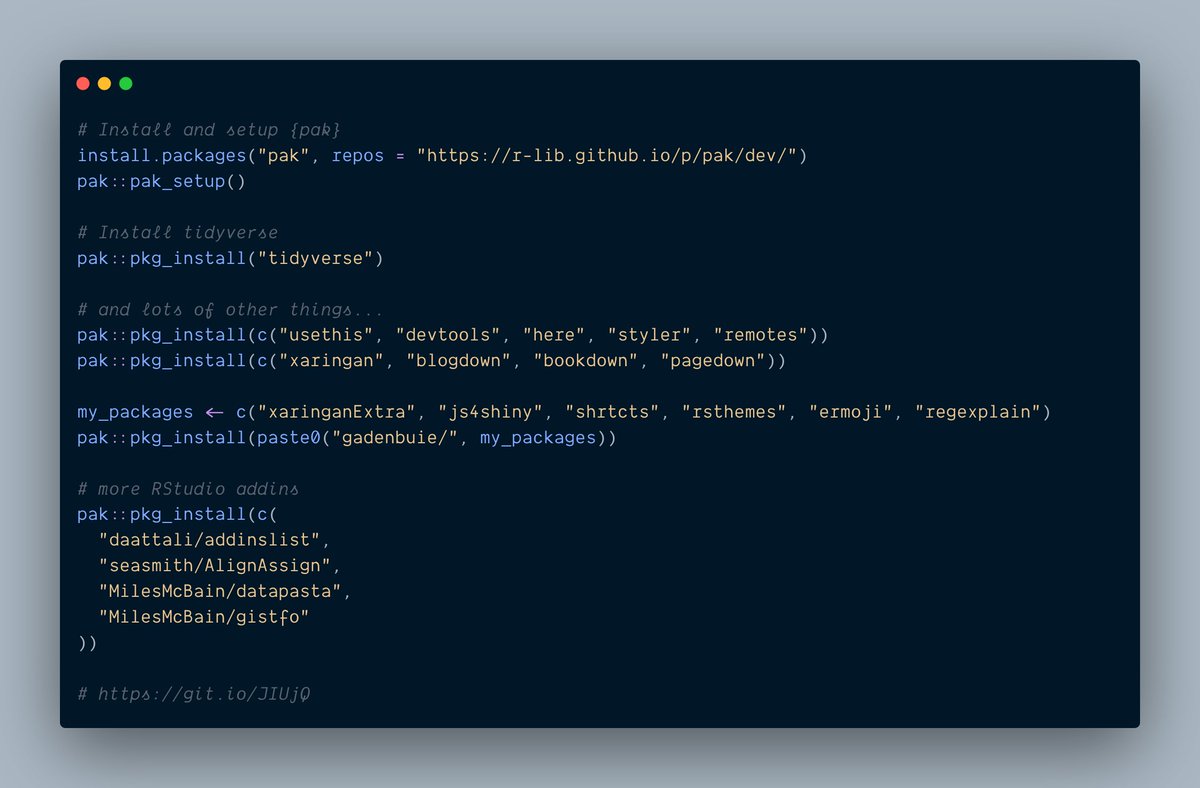
Okay, I need R packages now. To get them fast, I’ll install pak, which requires a little setup, and then I’ll kick off an install of tidyverse
install.packages("pak", repos = "https://r-lib.github.io/p/pak/dev/")

pak::pak_setup()

pak::pkg_install("tidyverse")
16 seconds later 🎉
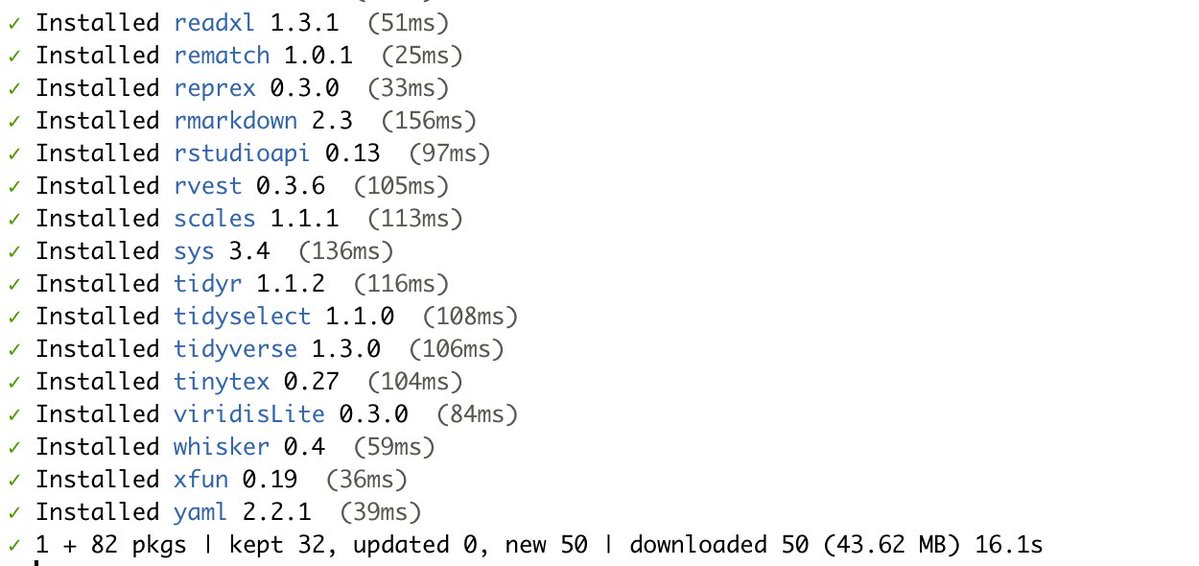
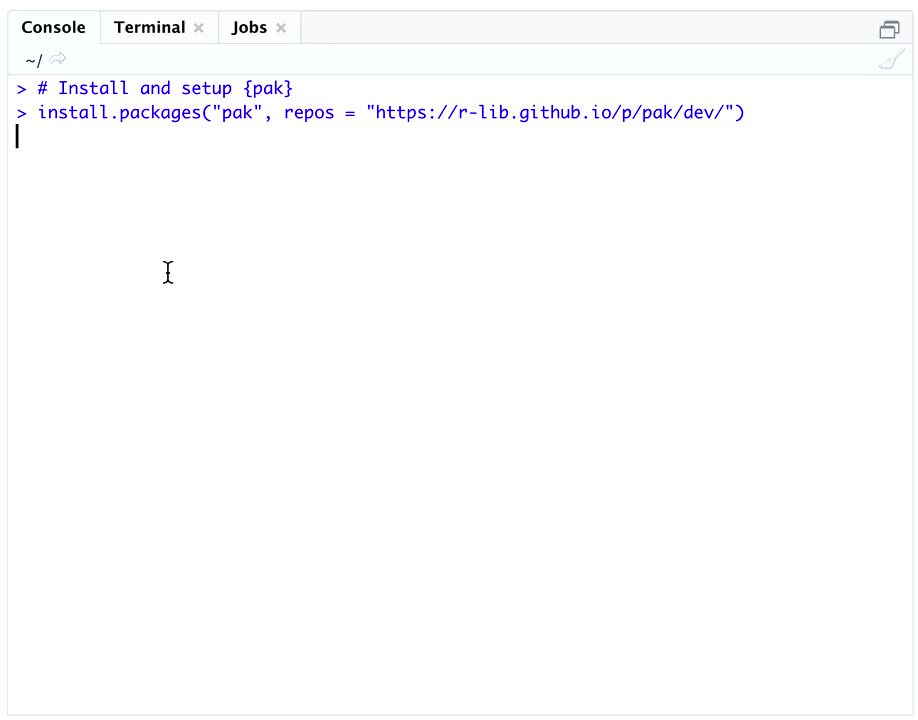
Wow pak is fast. These packages installed in literal seconds.
Mostly just basics I know I’ll want, other things to customize @rstudio
I ran this code for both R 3.6.3 and 4.0.3
Like it’s actually kind of fun to watch pak install your packages.
Utility Mac Apps
That’s it for R, here come a bunch of utility apps for Macs. These all make life a little easier, more productive. Fitter, happier.
These all worked on Catalina so I guess I’ll find out soon if they work for Big Sur…
Flycut is a clipboard manager that adds history to your clipboard. Copy several things from here, paste them there. Reuse old clips. I can’t even without this.
https://github.com/TermiT/Flycut#readme
Kap records your screen, converts movies to gifs and has powered half of this thread so far.
brew install --cask kap Rectangle is another absolutely essential mac app. Easily resize windows to fill parts of the screen with many keyboard shortcuts. Rectangle replaces Spectacle and adds snap zones.
brew install --cask rectangle AltTab adds window previews to the window switcher. Thanks @PeeltothePithy for the tip!
brew install --cask alt-tab https://alt-tab-macos.netlify.app/
KeyCastr show key presses on-screen, perfect for demonstrating cool RStudio keyboard shortcuts
brew install --cask keycastr http://github.com/keycastr/keycastr
Pock puts the dock in the touchbar. I appreciate this whenever my laptop isn’t docked.
https://pock.dev/
Amphetamine keeps your laptop awake for a certain amount of time. Useful for long running #rstats scripts, turn on amphetamine, turn off the monitor, walk away knowing your script is still going.
https://apps.apple.com/us/app/amphetamine/id937984704
If you’ve ever wanted to open certain links in *certain* browsers, Finicky can help.
brew install --cask finicky https://github.com/johnste/finicky
I’ve had enough of the default Big Sur desktop background. Luckily there’s Irvue – an hourly wallpaper refresh using pictures from @unsplash https://irvue.tumblr.com/
If you use, work with, or collect colors, Culr looks awesome. I haven’t used it much but I have a feeling I’ll use it frequently.
https://culrs.app/
And now that I just installed a dozen menu-bar apps, I don’t want to have to look at them all the time.
Hello dozer, a little app that hides the clutter!
brew install --cask dozer https://github.com/Mortennn/Dozer

That’s it for menu bar apps, let’s move on to big apps!

First up, essential work apps, slack and spotify.
Did you know you can install both with brew at the same time?
brew install --cask spotify slackI don’t always use editors that aren’t RStudio to edit code…
but when I do I use Visual Studio Code.
brew install --cask visual-studio-code https://code.visualstudio.com/
There are a lot of cool things going on with R and vscode. If you want a little intro to some good vscode extensions for web dev and more, I put together a list for #js4shiny
https://js4shiny.com/resources/setup/extras/#visual-studio-code
I recently started using @NotionHQ for collecting all of my random thoughts, outline writing, keep track of links and more.
https://www.notion.so/
It pairs nicely with Agenda, which is an app for date-linked notes and perfect for meeting notes.
https://www.agenda.com/
Another awesome app is Figma. Great for bits of design, testing app layouts, drawing diagrams and a whole lot more. The desktop app is slick.
https://www.figma.com/
My favorite app for working with big and complicated git repos is Fork. The visual history and diff features have saved me many times.
https://fork.dev/home
I wasn’t sure where to put Docker in the lineup, but it’ll be a good segue into command line apps.
And I always have to click around a bunch to find the download: https://hub.docker.com/editions/community/docker-ce-desktop-mac/
What’s cooler than docker? Rocker! 👩🎤
The rocker project provides a ton of r-based docker images, ranging from bare bones to ready for publication or geospatial analysis. Thank you @cboettig, @eddelbuettel and @noamross for your awesome work!
https://www.rocker-project.org/
Command Line Utilities
And now we’re moving into a new category: command line apps.
I know what you’re thinking, but these aren’t your mother’s command line apps. Command line apps have gotten really pleasant to use lately. They even have color! 🌈
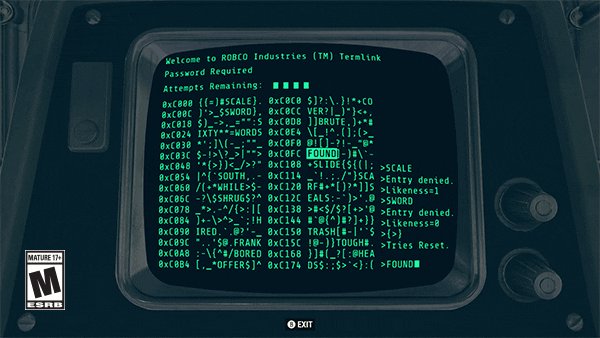
My recent new favorite is @github’s command line tool. It makes it surprisingly easy to create issues, review PRs, and generally interact with my work on GitHub.
brew install gh Speaking of git, bit is a fun CLI that smooths out some of git’s rougher edges.
brew install bit-git https://github.com/chriswalz/bit
Two more rhyming CLIs:
- bat makes it easy to see inside files
- nat makes it easy to see inside directories
brew install bat nat https://github.com/sharkdp/bat
https://github.com/willdoescode/nat
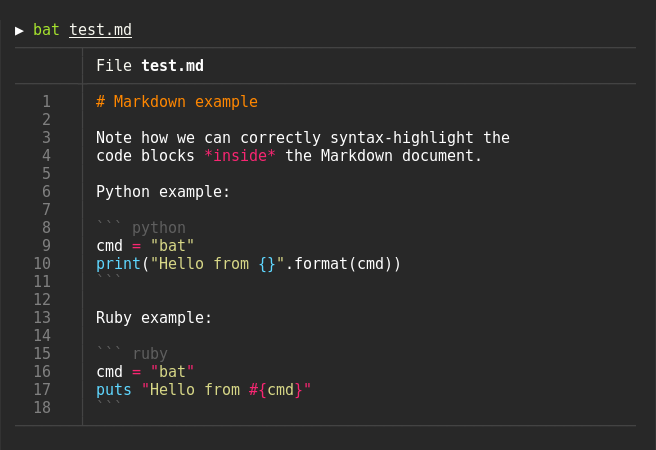
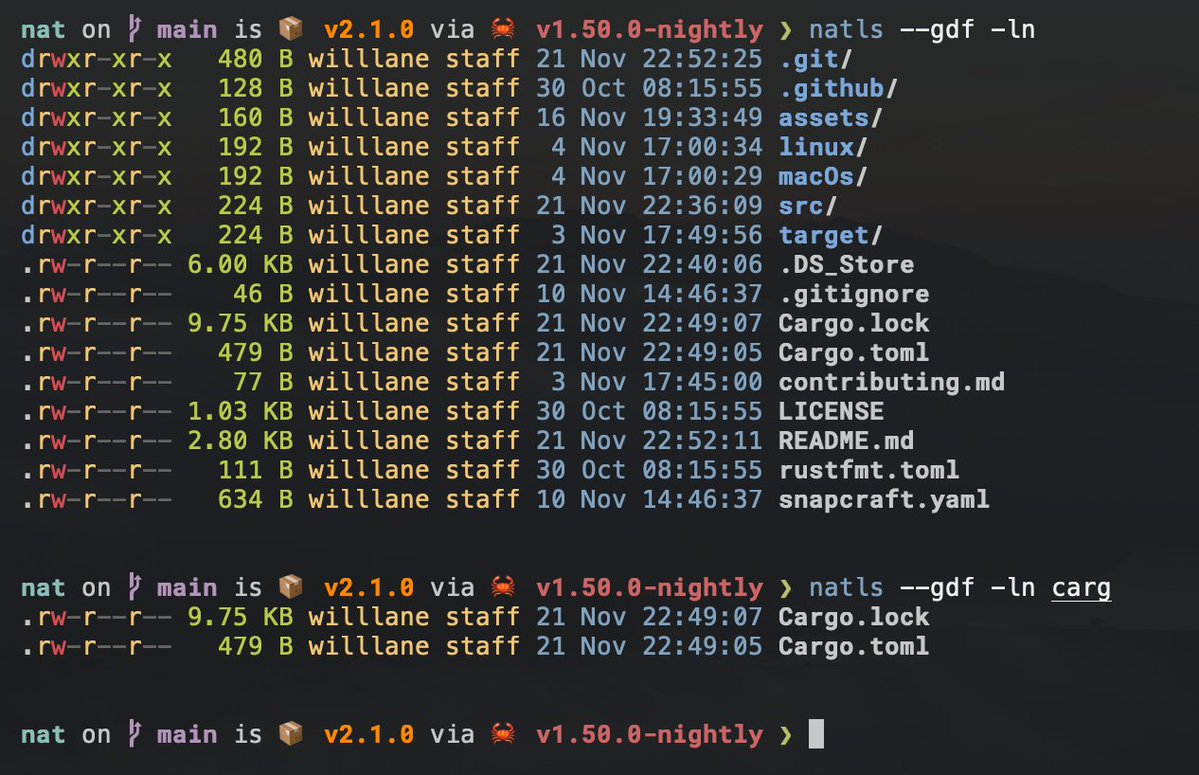
Oops nat needs a little more to install:
brew tap willdoescode/homebrew-natls

brew install natlsI love the idea of this one. Forget how tar works? tldr
brew install tldr 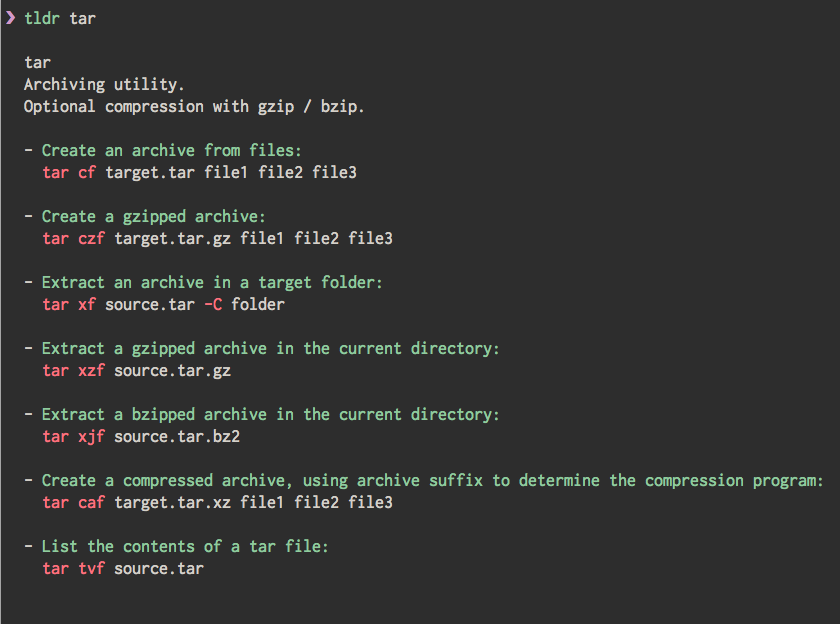
I can’t believe how much of the stuff in this thread I’ve been able to install with brew. Did you know you can use it to install fonts?
brew tap homebrew/cask-fontsThen install fonts with
brew install --cask font-incosolataor find fonts
brew search font-brew can even install node and then you can use npm to install even more things!
brew install node Do you ever write JavaScript and want it to look great without doing any extra work? StandardJS makes this happen.
npm install --global standard Another fun node package and CLI that I like a lot is gitmoji
npm install --global gitmoji-cliSemantic emoji for git commit messages! 🤪
https://gitmoji.carloscuesta.me/
Fish Shell
If you hung with me this far, I hope you don’t mind if I go extra geeky and talk about shells. Terminal shells. Like, a totally new command prompt, but one that helps finish your thoughts like fish
https://fishshell.com/
You can install fish from brew, and then it’s a good idea to install fisher, too. It’s a plugin manager for your shell.
brew install fishfisher install instructions: https://github.com/jorgebucaran/fisher
Then you can install plugins, like this sweet prompt theme called tide
fish # to start the fish shell

fisher install IlanCosman/tide
https://github.com/IlanCosman/tide#readme
tide has a sweet configuration menu that it walks you through, but of course I forgot that to make cool prompts like this work you need to install a Nerd Font
https://github.com/ryanoasis/nerd-fonts
I’ll just pick one to make it work
brew install --cask font-hasklug-nerd-fontand then configure iTerm to use “Hasklug Nerd”…
Boom, fancy prompt with icons!
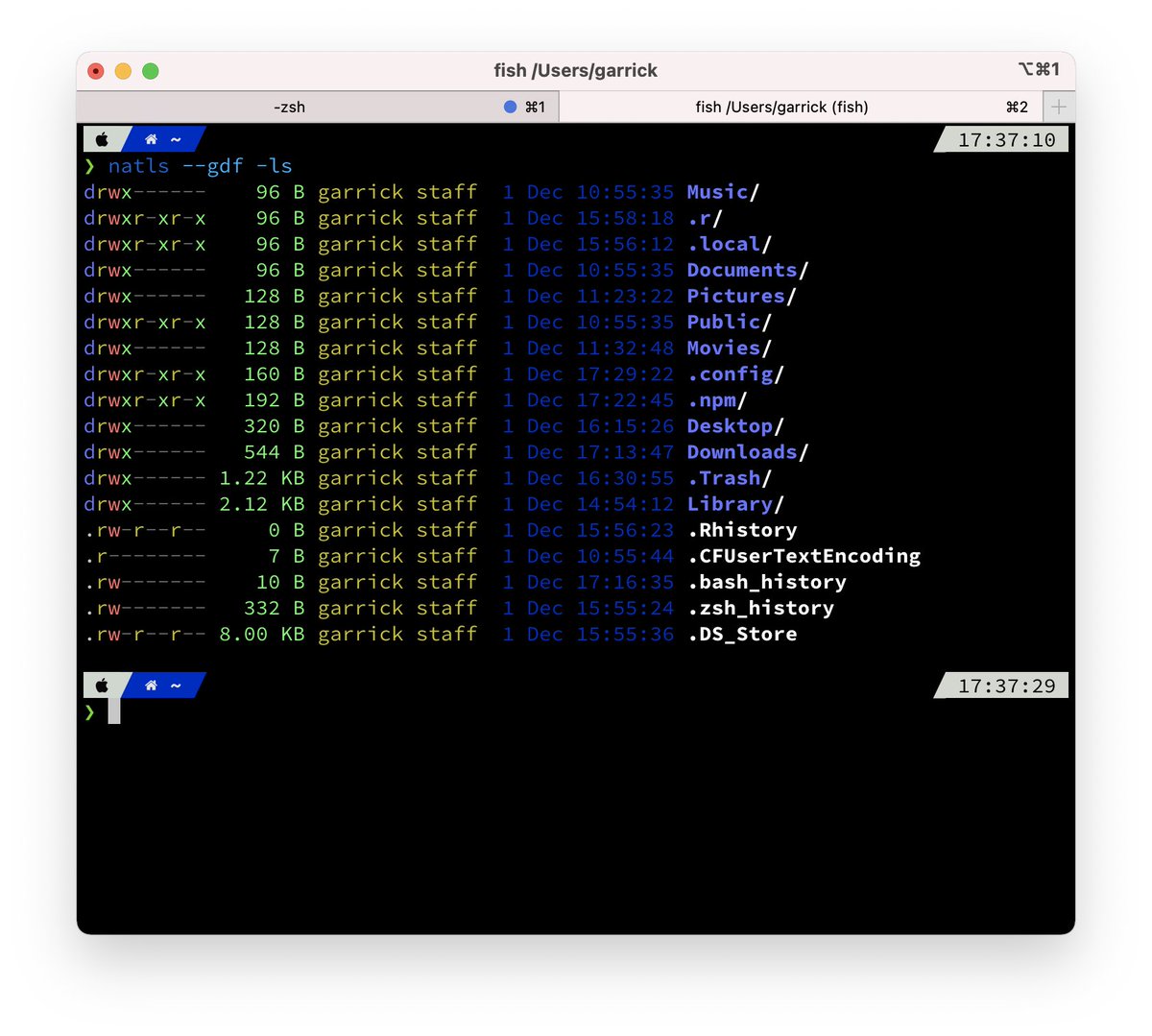
One more fish thing… there’s a utility called “z”
fisher install jethrokuan/z
z uses a list of frequent and recent directories to make it easy to move around your computer. After using it a bit you can type z doc and jump to ~/Documents
https://github.com/jethrokuan/z
Final fish point. The docs are awesome and there are some great extensions out there.
https://fishshell.com/docs/current/index.html
https://github.com/jorgebucaran/awesome.fish
Okay, at this point, my machine should be ready to use! And if not, it’s time for dinner anyway.
Thanks for reading! Let me know if I missed your favorite app anywhere 😉
So long and thanks for all the fish!

omg I still have so many things to log into and configure